A map of the screen
The three columns, the board, and how tabs move
The app is made of three columns, left to right.
| Column | What sits there |
|---|---|
| Left | The list of projects, and the board (the state of each session) |
| Middle | Tabs, and what is inside them (terminal, chat) |
| Right | The files of the workspace you have open |
The order is meant to let you watch what is running, give an instruction, and read the result without switching screens.
Just after launch
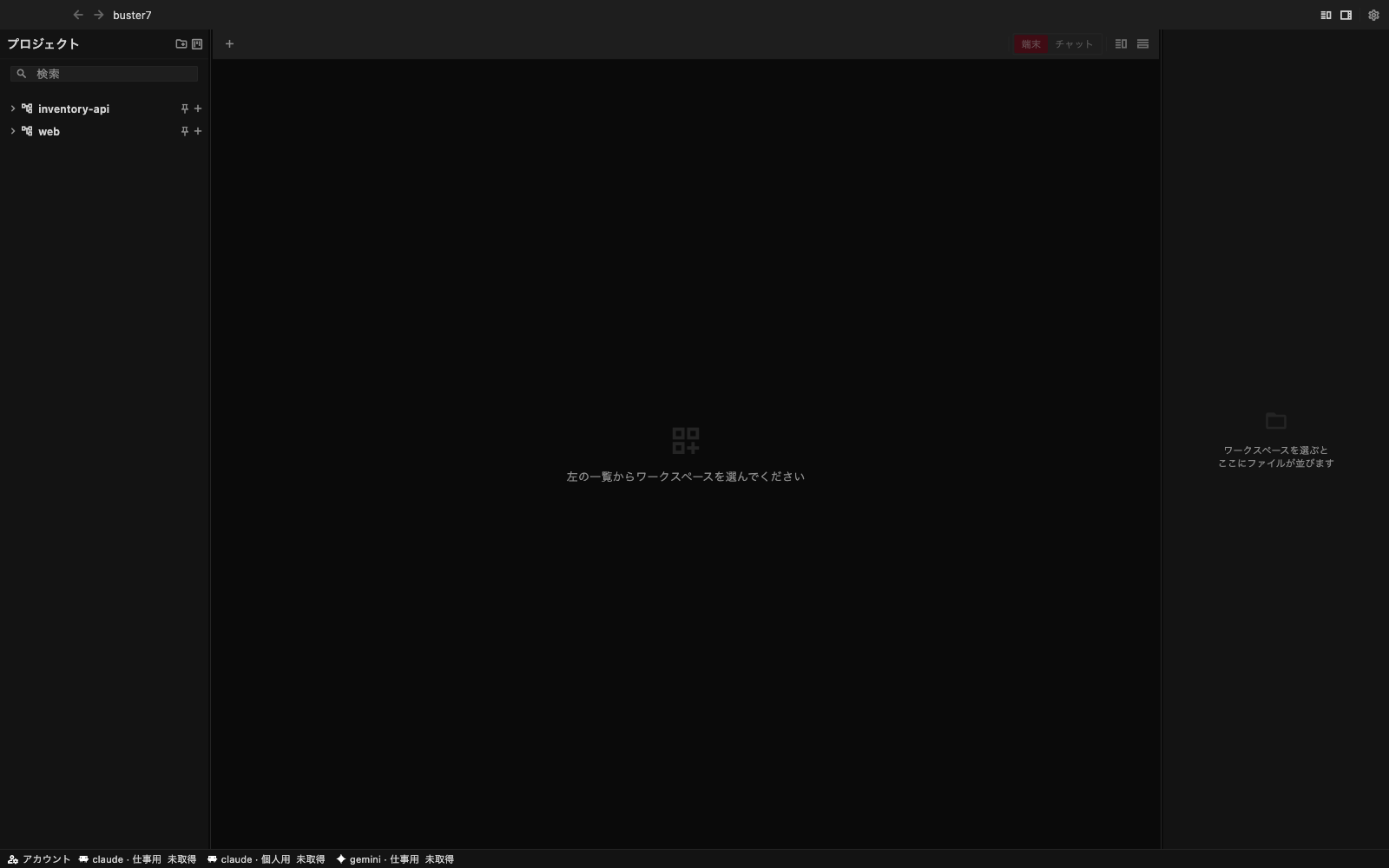
The list on the left holds your projects (registered directories). Nothing is open yet, so the middle and the right stay empty and wait.
The board
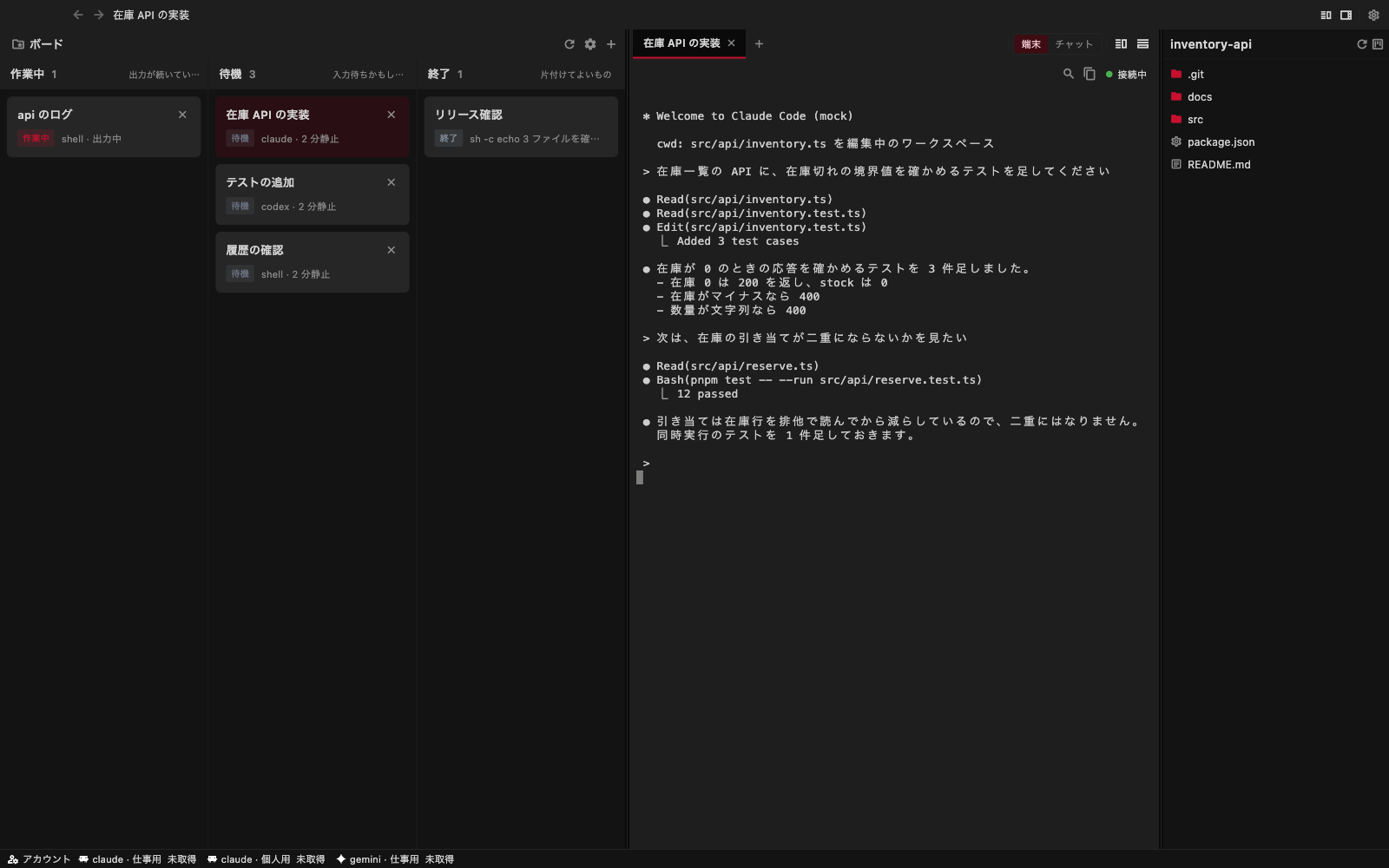
The left column is the state of your sessions. It is split into working, waiting, and finished, and one card is one session. When the state changes, the card moves between the columns. The idea is to see what is running and what is waiting for you without having to count.
- Working — the agent is producing output
- Waiting — it is waiting for input. Left alone, it stays stopped, so keep an eye on it
- Finished — the process has ended
Press a card and a tab for that session opens in the middle.
Tabs
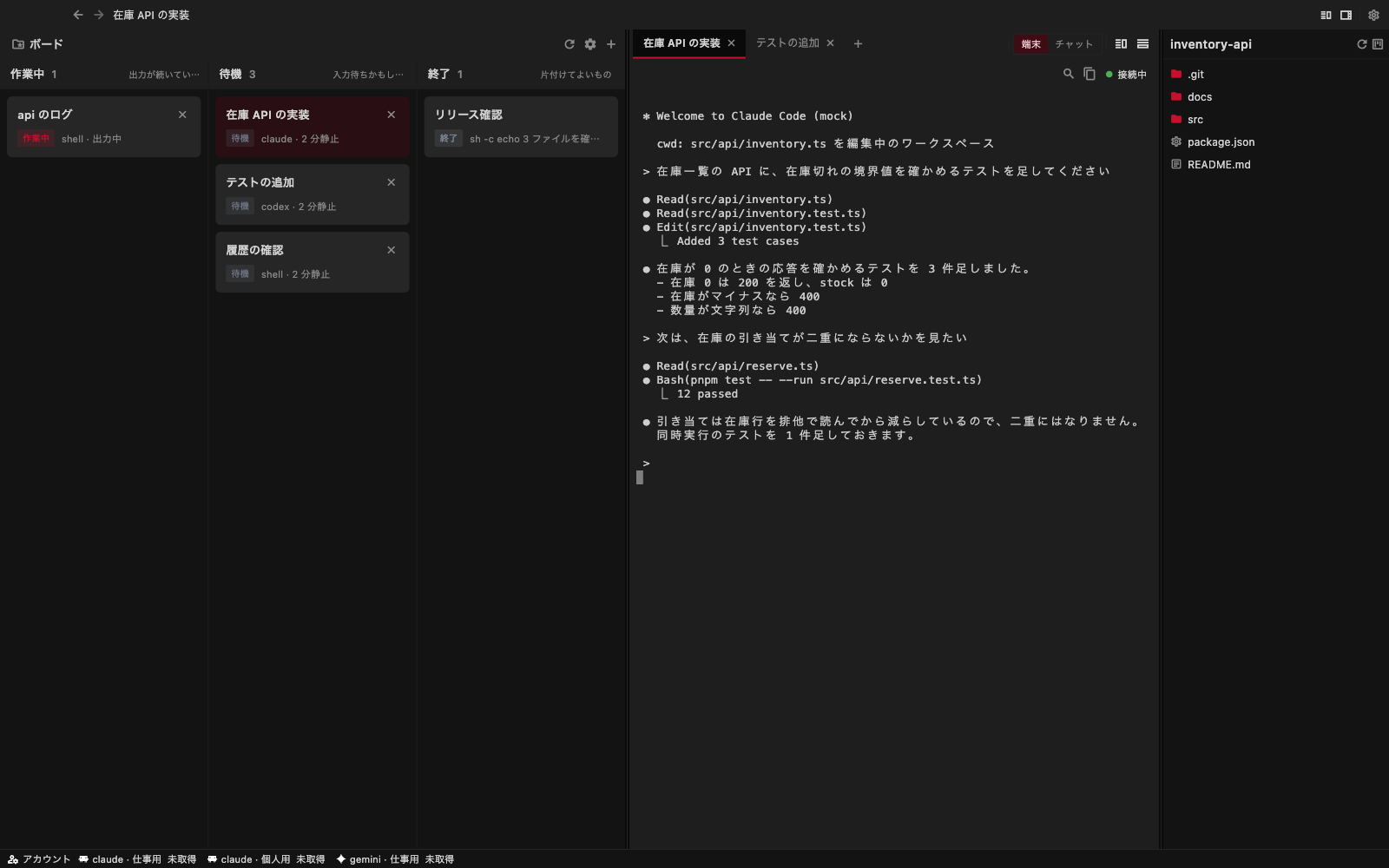
Tabs line up along the top of the middle column. One tab is one session. A session can hold more than one pane (terminal, chat), so you can watch the same partner from both.
Closing a tab also stops that session. A tab that vanishes while the work runs on behind it would leave what you see out of step with what is running. So that you do not stop a session by mistake, pressing the X asks for confirmation first.
Right-click to act
On a tab you can split or close; on a session you can open it, copy its name, or stop it. On a project you can pin it or add a workspace; on a workspace you can copy its path; on a file you can open it, expand a folder, or copy a path or name. Stopping a session and closing a tab both ask for confirmation.
Maximize the window
On a Mac, double-click the title bar or the empty space beside it to maximize. Double-click again to go back to the previous size. Double-clicking an interactive control does not maximize.
Fold the panes away
The board on the left and the files on the right can be folded away with the toolbar buttons, which gives the middle column more room. To give the terminal more space see Terminal; to look at files see Files.
On a phone or a tablet
On touch devices (iPhone / iPad, Android) the skeleton of the screen changes. Instead of squeezing in three columns, the list on the left moves into a drawer, and a row of helper keys (Esc, Ctrl and so on) sits below the terminal.
The skeleton follows the device, not the window
Narrowing a macOS window does not turn it into the mobile skeleton. When the window is narrow, only the panes that no longer fit fold away.