Accounts
Keep separate sign-ins and choose an account for each session
Choose Accounts at the bottom of the window to add a service and a label, such as “Work” or “Personal.”
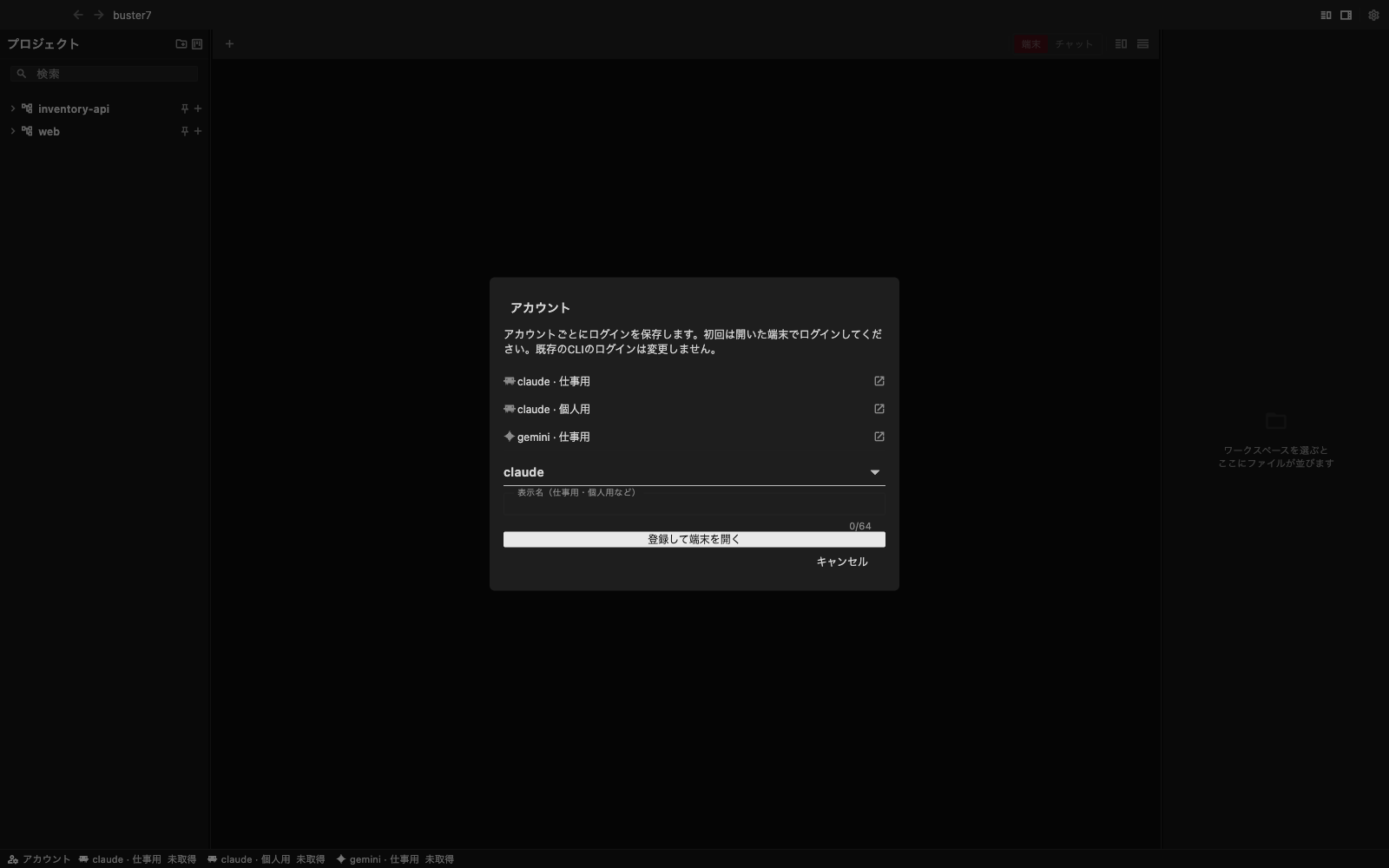
Sign in for the first time
Select Add and open terminal, then follow the sign-in instructions in the terminal. You do not enter a password in the buster7 account form. Afterward, choose the saved label to open another session. If authentication expires, sign in again through that account’s terminal.
Your existing CLI sign-in is not changed. To use it, select Use existing CLI sign-in when starting a session. Managed accounts have separate settings; existing personal settings and extensions are not copied automatically.
Choose accounts per project
Right-click a project and select Project accounts. Choose a saved account for each service. New terminals in that project and its worktrees use the selected account automatically; existing terminals keep their accounts. Select Choose on launch to choose each time instead.
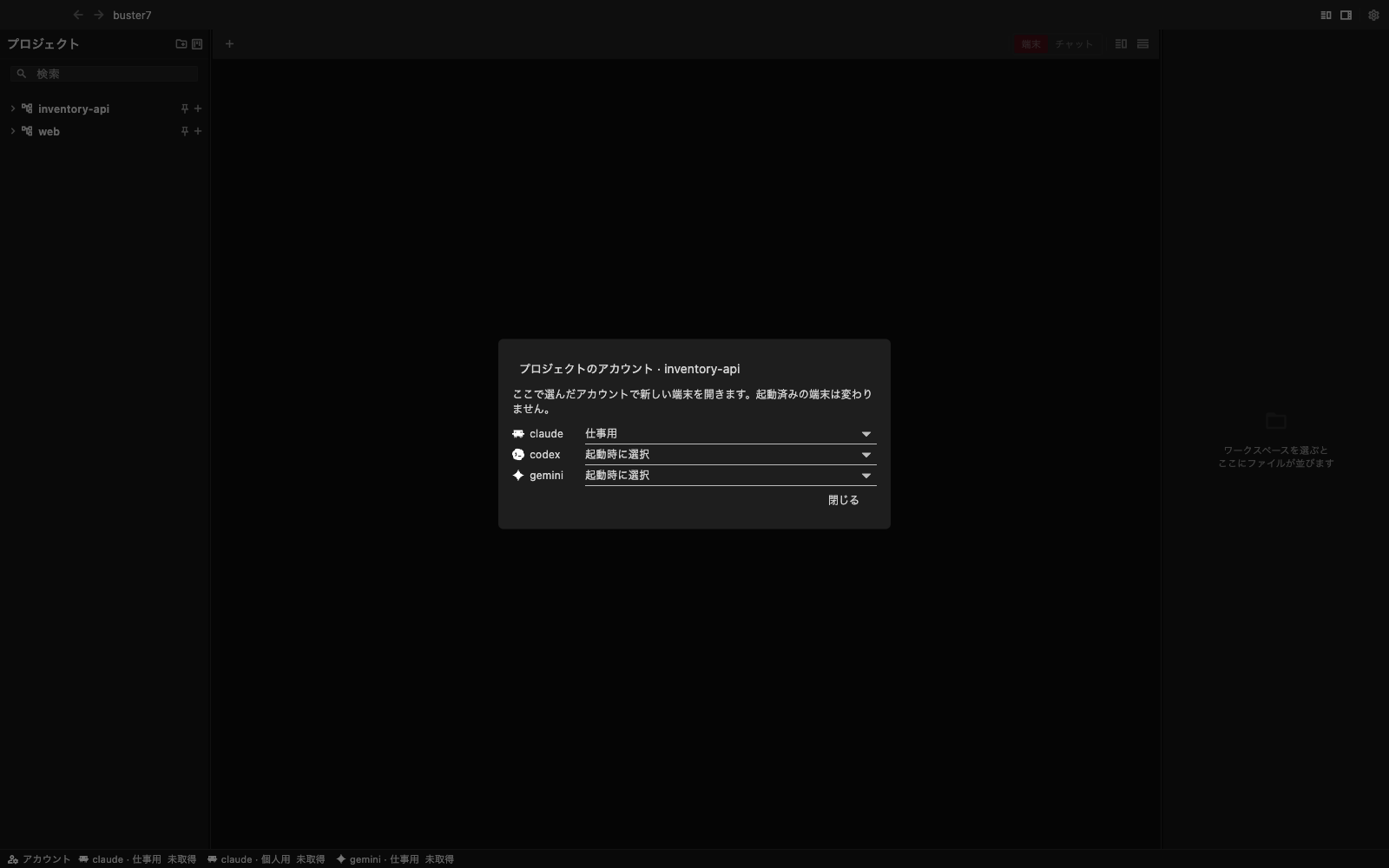
If settings cannot be loaded, the terminal does not start with a different account. Check the connection and try again.
Read usage limits
The bottom bar shows remaining usage for each available window. Hover over a value to see when it was fetched and when the window resets.
- Not fetched: information is not available yet, or automatic retrieval is unsupported.
- Sign in required: sign in through that account’s terminal.
- Unavailable: check the connection or service status.
- Awaiting update: the saved value is too old to show as current remaining usage.
Availability varies by service. Reaching a limit does not switch accounts automatically: an open session keeps the account it was started with.