Projects and files
Registering workspaces, and reading files
Projects and workspaces
buster7 handles the place you work in two levels.
| Name | What it is |
|---|---|
| Project | A registered directory. It sits in the list on the left |
| Workspace | A place to work inside a project. The agent runs here |
For a git project, a workspace can be created as a worktree. Otherwise it is a subdirectory. The idea is to keep straight which workspace is running what, while gathering them under one project.
From the list on the left you can:
- Add a project (the + button;
b7 dirscan suggest candidates) - Pin a project to hold it at the top
- Add a workspace to a project
- Filter the list by search
Looking at files
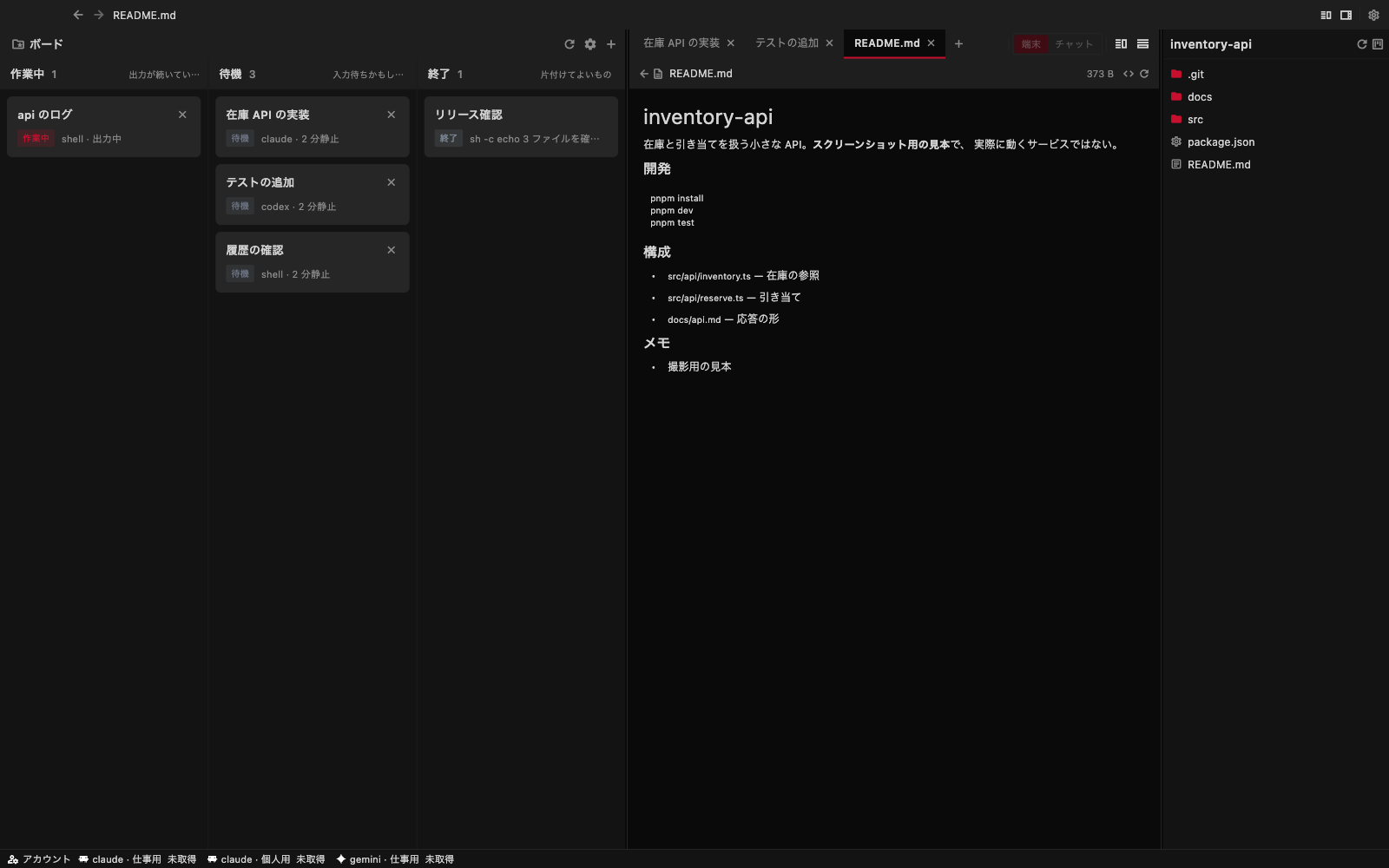
Images can be zoomed and panned. Markdown opens as a rendered preview; use the code button above it to switch to source. PNG, JPEG, GIF, WebP and BMP images up to 8 MiB are supported.
The right column is the file list of the workspace you have open. Walk into folders and press a file to open it. Source code can be read right there.
You can also open a file by clicking a path printed in the terminal (Terminal). Use that when you want to check a file the agent edited without waiting to be told.